
We’ve all been there, you hit Send, and instantly your heart drops. Maybe you emailed the wrong person, attached the wrong file, or sent something before it was ready. The good news? If you’re using Microsoft Outlook, you might be able to pull it back.
Email mistakes happen to the best of us, and recalling an email in Outlook is like having a small “undo” superpower, as long as a few conditions are met. Let’s walk through exactly how to recall an email in Outlook, what you need to know before trying, and what to do if the recall option doesn’t work.
Can You Really Recall an Email in Outlook?
Yes, Outlook lets you recall or replace an email, but only if:
- You and the recipient are using Microsoft Outlook.
- You’re both on the same organization or Exchange server.
- The recipient has not opened the email yet.
Think of it like trying to grab a letter out of someone’s mailbox before they check it. If they open it, it’s too late. But if it’s still sitting there, you can take it back.
How to Recall an Email in Outlook (Desktop App)
Follow these simple steps:
Step 1: Open Your Sent Items
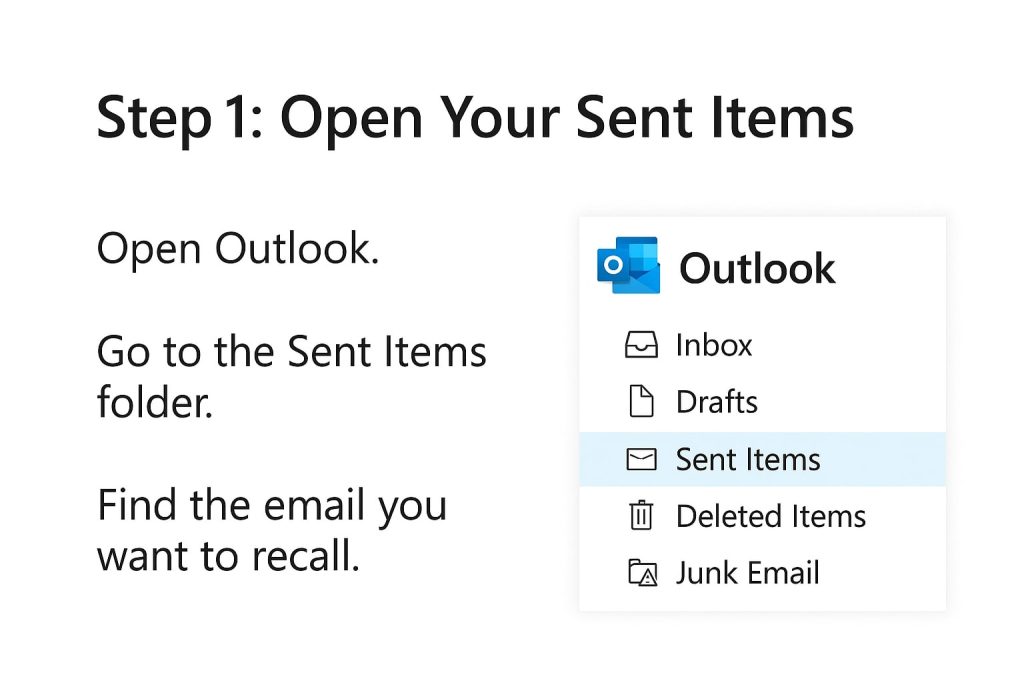
- Open Outlook.
- Go to the Sent Items folder.
- Find the email you want to recall.
Step 2: Double-Click to Fully Open the Email
The recall option won’t show if the message is opened in the preview pane.
Double-click so it opens in a new window.
Step 3: Go to the Message Menu
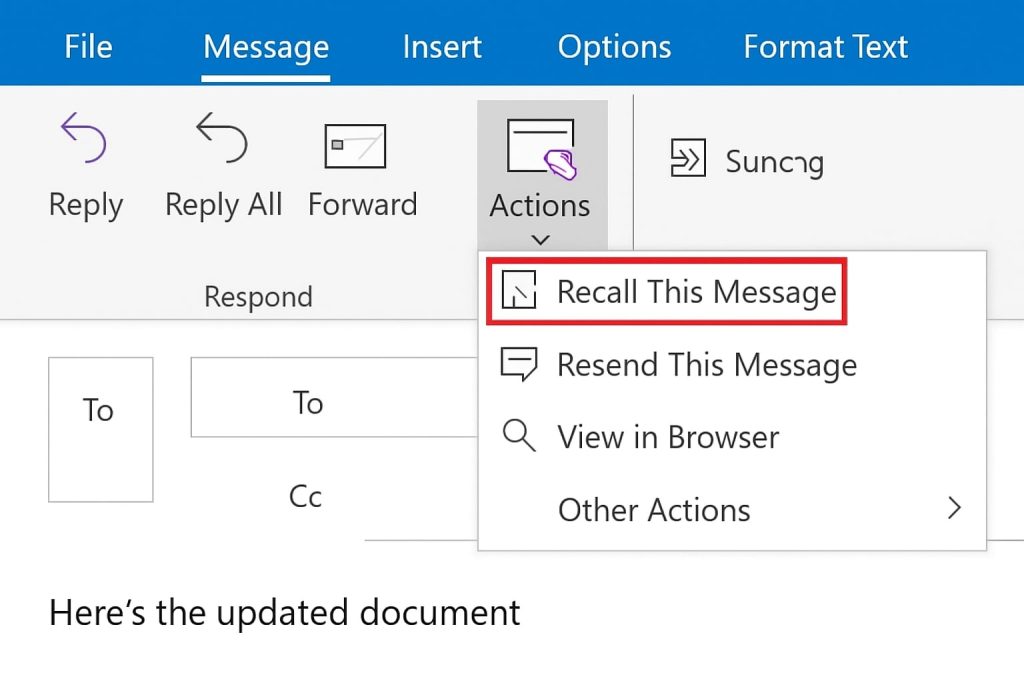
At the top:
- Click Message (the tab on the toolbar)
- Select Actions
- Choose Recall This Message
Step 4: Choose What You Want to Do
You’ll see two options:
✔ Delete unread copies of this message
(Outlook tries to remove the message from the recipient’s inbox)
✔ Delete and replace with a new message
(You can edit the email and resend the corrected version)
You can also tick the box:
“Tell me if recall succeeds or fails for each recipient.”
This sends you a status report — super helpful.
Click OK to proceed.
Step 5: Wait for Outlook to Confirm
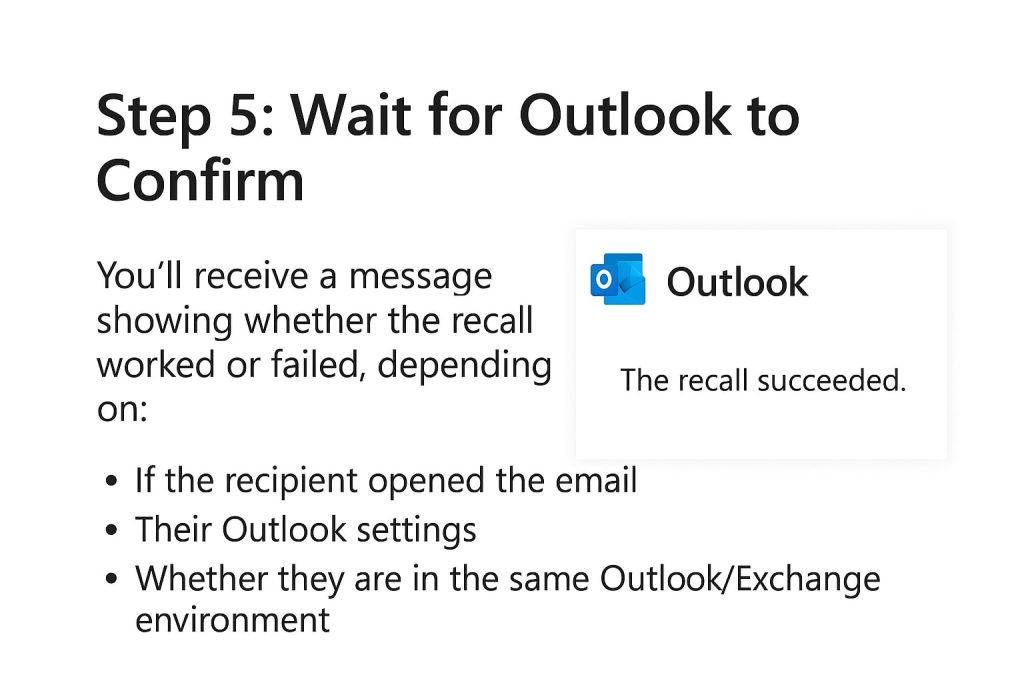
You’ll receive a message showing whether the recall worked or failed, depending on:
- If the recipient opened the email
- Their Outlook settings
- Whether they are in the same Outlook/Exchange environment
How to Recall an Email in Outlook Web (Outlook.com)
Here’s the catch:
– Outlook Web does NOT support recalling emails.
If you sent the email from browser Outlook.com, you cannot use recall — but there’s a workaround:
Use “Undo Send”
This feature delays sending for a few seconds, giving you time to stop the email.
To enable:
- Go to Settings
- Select View all Outlook settings
- Navigate to Mail > Compose and Reply
- Find the Undo Send slider
- Increase it to 10 or 20 seconds (recommended)
Now you get a small time window to undo a sent email—like a mini safety net.
Why Email Recall Sometimes Fails?
Outlook recall isn’t magic. It can fail for several reasons:
- The recipient is not using Outlook
- Recipient is using Gmail, Yahoo, or another service
- The email was already opened
- Recipient moved the email from their inbox
- You’re not in the same organization (e.g., emailing a client)
In short:
Recall works best for internal company emails.
What to Do If Recall Doesn’t Work?
If the recall fails (or you know it won’t work), don’t panic. You have options:
✔ Send a correction email
A simple, honest follow-up works wonders.
Example:
“Hi, please disregard my previous email, here’s the corrected version.”
✔ Use delayed sending for future emails
You can set a delay on all outgoing messages.
How to enable in Outlook (desktop):
- Go to File > Manage Rules & Alerts
- Click New Rule
- Choose Apply rule on messages I send
- Add a delay, usually 1–2 minutes is perfect
This gives you a built-in buffer for mistakes.
Tips to Avoid Email Mistakes in the Future
Think of these as your “email safety hacks”:
1. Enable Undo Send (Outlook web + mobile)
Gives you time to stop accidental emails.
2. Double-check attachments before hitting Send
Attach first, write later, a useful habit.
3. Use email delay rules
A one-minute delay can save you from many headaches.
4. Reread your message out loud
Your brain catches mistakes your eyes miss.
Final Thoughts
Recalling an email in Outlook is a handy trick, but it isn’t foolproof. It works mainly in specific work environments and depends heavily on whether the email has been opened.
Still, knowing how to recall an email and setting up safety features like delayed sending or Undo Send gives you a lot more control and peace of mind.
Remember: mistakes happen. What matters is how quickly and smartly you respond.